1 min read
8 Common HubSpot Onboarding Mistakes to Avoid for a Cleaner CRM and Better Reporting
 Eric Smith : Mar 27, 2026 1:30:00 PM
19 min read

HubSpot CRM's portal is user-friendly, the setup menus are accessible, and it is easy to assume you can build as you go. The problem is that early shortcuts tend to show up later as messy records, unclear ownership, broken reporting, and a sales team that no longer trusts the system.
A CRM Data Management report found that 37% of CRM users reported losing revenue as a direct consequence of poor data quality. A good HubSpot CRM setup should help you avoid that outcome by getting the structure, workflow logic, and reporting foundations right before daily activity makes mistakes harder to fix.
P.S. Before you move contacts, deals, forms, and workflow logic into a live HubSpot portal, it helps to know whether your property structure, pipeline setup, and reporting model will hold up under daily use. At Smith Digital, we help B2B teams configure HubSpot around real sales and marketing workflows so the CRM stays usable, measurable, and manageable after launch. Request CRM setup to identify the configuration gaps most likely to create duplicate data, broken automation, or weak pipeline visibility.
For a strong HubSpot CRM setup, you need a clear model for how contacts enter the system, how they move through lifecycle stages, when sales takes ownership, what qualifies a deal, and how reporting should work once the portal is live. If you skip that planning and go straight into tool configuration, HubSpot will still function, but it will reflect guesswork instead of process.
The setup sequence below is designed to be executable. You can work through it inside HubSpot while reading, but do the steps in order. Each step depends on the one before it.
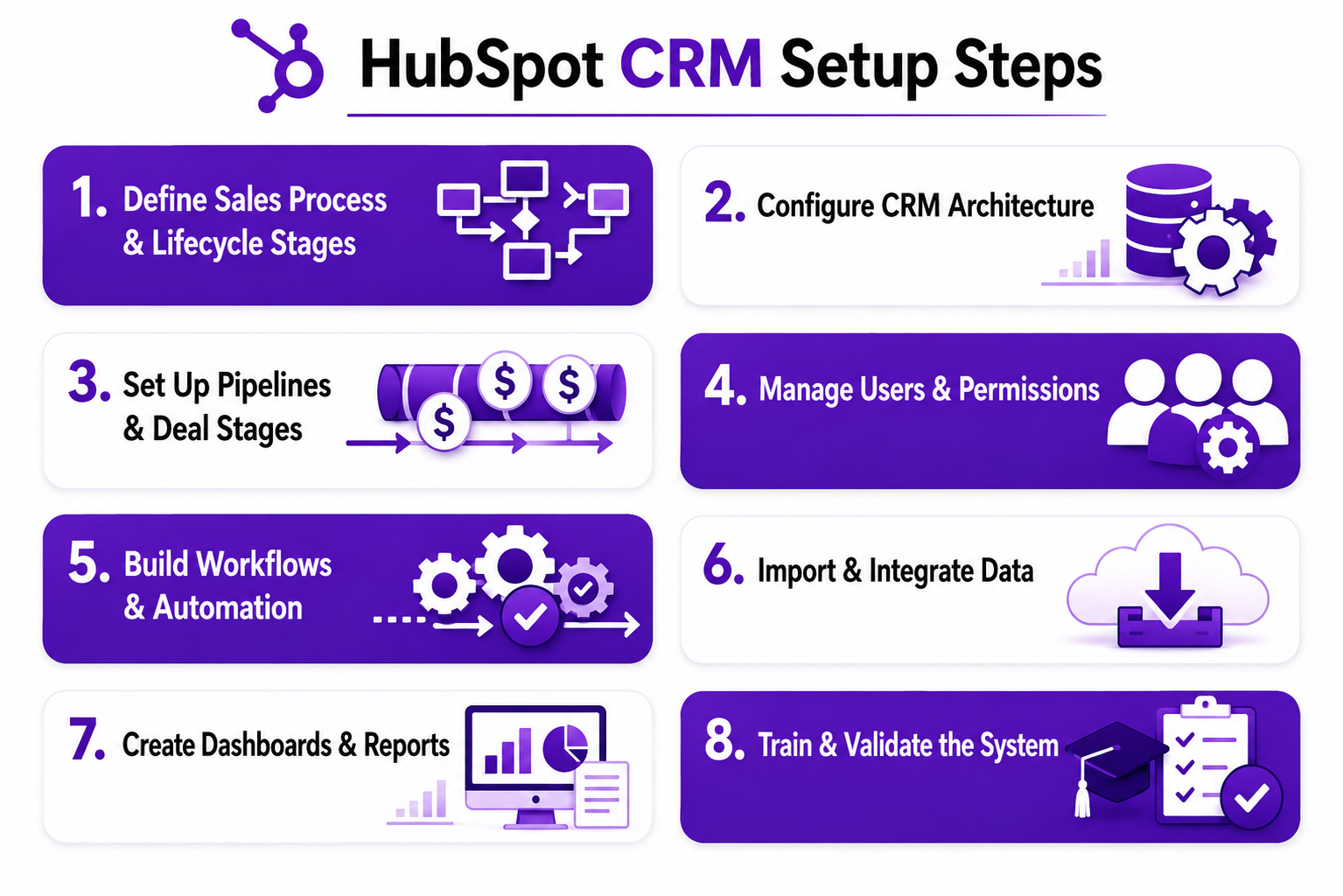
Before you set up HubSpot CRM, write down how your team actually works. Do not start with HubSpot’s default lifecycle stages or a sample deal pipeline unless those already match your sales process.
Open a shared document or spreadsheet and define the exact meanings of Subscriber, Lead, Marketing Qualified Lead, Sales Qualified Lead, Opportunity, Customer, Evangelist, and any custom lifecycle stage you truly need. If you use both Lead Status and Lifecycle Stage, define the difference between them. Lifecycle stage usually describes funnel position, while lead status usually describes a rep’s working status, such as New, Attempting, Connected, Open, Unqualified, or Bad Timing.
Then define handoffs. Decide what event moves a contact from marketing ownership to sales ownership. That might be a demo request, a score threshold, a form submission on a pricing page, or manual qualification by a BDR. Write down who receives the lead, what task gets created, how fast follow-up should happen, and what properties must be completed before the handoff counts as valid.
You also need agreement on deal creation rules. Some teams create deals only after a booked meeting. Others create deals after qualification. Pick one rule and document it. If your reps create deals at different moments, your pipeline, conversion rates, and forecast will all become harder to trust.
Before moving on, your planning document should include these items in plain language:
Lifecycle Stage Definitions: What each stage means, who can update it, and which event triggers movement.
Lead Status Rules: Which statuses sales can use, what each one means, and when a lead should move out of an active working queue.
Deal Creation Criteria: The exact point at which a contact or company becomes a deal.
Ownership Logic: Which users or teams own new leads, qualified leads, open deals, and customers?
Handoff Conditions: Required fields, SLA timing, notification rules, and what happens if follow-up does not occur.
Reporting Priorities: The metrics you expect HubSpot to show, such as MQL volume, SQL volume, opportunity creation, stage conversion, forecasted revenue, or owner activity.
Once the process is documented, build the CRM structure that will hold the data. In HubSpot, go to Settings > Properties and review the default properties for contacts, companies, deals, tickets, and activities. Use default properties where they already fit your process. Create custom properties only when the existing ones do not capture what you need.
This is where many setups go wrong. Teams often create too many custom properties, use the wrong field types, or duplicate information that already exists elsewhere in the portal. That creates confusion in forms, filters, workflows, and dashboards later.
Use this checklist while configuring properties:
Required Properties: Decide which fields must be present for active records. For example, a contact may require email, lifecycle stage, source, owner, and business unit. A deal may require deal stage, amount, close date, pipeline, owner, and product line.
Correct Field Types: Use dropdown select fields for standardized values like lead source, industry, region, and qualification status. Use date fields for demo dates or renewal dates. Use number fields for employee count, ARR, or deal amount. Do not store structured values in plain text if you plan to filter, score, automate, or report on them.
Approved Value Sets: Standardize dropdown values before users start entering data. If your country field will be filtered in lists and dashboards, decide whether the allowed value is “United States” or “USA” and use only one. Apply the same discipline to lifecycle stages, company owner names, product interest, and disqualification reasons.
Naming Conventions: Use clear, specific property names such as “Primary Product Interest,” “Demo Requested Date,” or “Qualified By BDR.” Avoid vague labels like “Status 2,” “Notes Field,” or “Custom Lead Type.” Bad naming conventions make admin work slower and increase user error.
Property Scope: Create properties on the right object. If a value belongs to the company, store it in the company. If it belongs to the contact, store it on the contact. If it belongs to a sales opportunity, store it on the deal. Putting “ARR Potential” on the contact instead of the deal can make reporting and forecasting much harder.
Property Hygiene: Review whether a property is actually needed for segmentation, routing, reporting, or operational use. If a field has no reporting, workflow, or process value, leave it out. Extra fields increase data entry friction and reduce adoption.
At this stage, also decide how records should relate to one another. HubSpot will associate contacts, companies, deals, tickets, and activities, but your team needs rules for when those associations matter. If you import deals later, you will want a reliable way to connect them to the right company and contact records from the start.
Now configure your sales pipeline. In HubSpot, go to Settings > Objects > Deals > Pipelines. If you have one sales motion, start with one deal pipeline. If you have materially different motions, such as new business versus renewals, or direct sales versus partner-led sales, separate pipelines may make reporting cleaner. Do not create multiple pipelines just because departments want their own views. First, check whether saved views and filters would solve that need without fragmenting reporting.
Each deal stage should represent a real change in sales progress. A good stage has a clear entry condition, a clear exit condition, and a practical reason to exist in reporting. “Discovery Complete” is useful if the team can consistently define when discovery is done. “In Progress” is usually too vague to help.
Use a stage design worksheet like this before building stages in HubSpot:
When you create stages in HubSpot, review the deal probability assigned to each one. Those percentages affect weighted forecasting and revenue reporting. If the team inflates probabilities to make the pipeline look healthier, forecast quality will suffer. Tie probabilities to real historical movement if you have it. If not, use disciplined estimates and adjust later after several months of stage conversion data.
Also, decide whether deals should be allowed to skip stages. In some sales motions, skipping from qualification to proposal is normal. In others, it means the stage design is not being followed. Document that rule and train on it.
Once the structure is ready, configure who can access what. In HubSpot, go to Settings > Users & Teams. Add users, group them into teams where needed, and apply permission sets based on role. Do this before the broader rollout, so people do not start working around unclear access.
Permissions should protect data quality without blocking normal work. If too many people can edit everything, your properties, lists, and workflows become harder to govern. If permissions are too restrictive, users will stop trusting the CRM and revert to spreadsheets or side channels.
Configure this area carefully:
User Roles: Separate admins, sales managers, reps, marketing users, and service users based on what they actually need to see and edit. A sales rep may need access to contacts, companies, deals, tasks, sequences, and meetings, but not property creation, workflow editing, or account-wide settings.
Team Structure: Use teams if reporting, visibility, or assignment rules depend on groups such as inbound sales, outbound sales, account management, or regional teams. This helps with saved views, owner filtering, and workflow routing.
Permission Sets: Limit who can create custom properties, edit workflows, change pipelines, delete records, or export data. These settings directly affect data integrity and compliance.
Record Ownership Rules: Decide how owners get assigned. That may happen through import, manual assignment, round-robin workflow logic, territory rules, or form routing. If ownership is inconsistent, follow-up and reporting will break quickly.
View Restrictions: If certain teams should only work on their own records, configure that deliberately. This is especially important when multiple teams use HubSpot without stepping on each other’s toes.
Edit Discipline: Decide which fields only admins or managers can change, such as lifecycle stage overrides, closed-lost reason cleanup, or forecast category adjustments. This prevents accidental edits that distort reports.
After permissions are set, log in as a test user or have one rep verify the experience. Open a contact, company, and deal record. Make sure the user can see the fields they need, cannot edit what they should not change, and can complete routine actions without admin help.
HubSpot workflows can save a large amount of manual work, but only if the underlying logic is clean. Do not automate around unclear lifecycle definitions or incomplete property structure. Bad automation hides problems instead of solving them.
In HubSpot, go to Automation > Workflows and start with the smallest set of workflows that remove obvious operational friction. Good first workflows usually support lead routing, task creation, lifecycle updates, internal notifications, and owner assignment. Leave more advanced branching, scoring, and enrichment logic for later unless you already have strong process discipline.
Build automation in this order:
Lead Assignment Workflow: Use form submissions, territory fields, company size, product interest, or round-robin logic to assign the correct owner. For example, a contact who submits a demo form for Product A from the U.S. market may route to the inbound AE queue, while a contact from an existing customer account may route to account management instead.
Task Creation Workflow: Create follow-up tasks when a lead reaches a qualifying threshold. Include task title, due date logic, owner assignment, and context fields such as form name, lead source, or product interest so the rep knows what triggered the task.
Lifecycle Stage Workflow: Only automate lifecycle changes if the trigger is reliable. A demo request, a meeting booked, or a manually validated score may justify movement from Lead to MQL or SQL. Avoid fragile triggers that depend on incomplete fields or soft behavioral signals alone.
Deal Creation Workflow: Some teams automate deal creation after a qualification event. If you do this, test carefully so HubSpot does not create duplicate deals when a contact fills out multiple forms or re-enters a workflow.
Notification Workflow: Use internal email or Slack alerts sparingly and only when action is required. Too many notifications train users to ignore them.
Data Cleanup Workflow: Simple automation can help format records, populate default values, or flag missing information. For example, a workflow can notify admins when a deal reaches Proposal Sent with no amount or no close date.
Before turning any workflow live, test it with controlled records. Create a sample contact with the exact values needed to trigger the workflow. Then confirm all of the following:
Name workflows clearly. A label like “Lead Routing - Demo Request - U.S. Enterprise” is much easier to maintain than “Main Routing Flow v3.” Good naming conventions matter as your automation library grows.
Do not import data until the portal structure is ready. If you import first and configure later, you will spend more time correcting records than setting up the CRM.
Start by preparing your source files. If you are migrating from spreadsheets or another CRM, separate data by object where possible: one file for contacts, one for companies, one for deals, and one for notes or activities if needed. Review the columns against the HubSpot properties you already created.
Use this import process step by step:
Standardize Values: Clean spreadsheets before import so fields such as industry, company owner, country, lifecycle stage, lead status, and deal stage use one approved format. Fix variations like “USA” vs. “United States,” “MQL” vs. “Marketing Qualified Lead,” or rep names entered as both full names and initials, because inconsistent values break segmentation, routing, and reporting.
Remove Duplicates: Review repeated contacts, companies, and deals before import so HubSpot does not start with duplicate records that split email history, activity timelines, deal ownership, and attribution data. Pay close attention to records with matching email addresses, similar company domains, duplicate deal names, or multiple versions of the same account created by different teams.
Map Fields Carefully: Match each spreadsheet column to the correct HubSpot property so data lands where users expect it and reports stay reliable later. Check whether values belong in default properties, custom properties, date fields, dropdowns, number fields, or multi-select fields, because mapping “Annual Revenue” into a text field or “Lead Source” into the wrong property can distort filters, workflows, and dashboards.
Be Selective With Old Data: Leave out outdated notes, unused properties, and legacy values that do not support current sales, marketing, or service work. That may include closed deals from an old sales process, inactive lifecycle stages, outdated lead source labels, notes tied to former reps, obsolete custom fields, or contact properties no team uses anymore, because too much low-value historical data makes the CRM harder to search, segment, maintain, and trust.
Test A Small Sample First: Import a small batch of contacts, companies, and deals, then open those records in HubSpot and check that property values, associated records, activity history, and date formatting all appear correctly. This helps you catch problems like broken company-contact associations, dropdown values importing as plain text, notes landing in the wrong property, or dates displaying incorrectly, before a full migration creates cleanup work at scale.
When you are ready to import, use HubSpot’s import tool from the object index page or import menu. Follow the import type that matches your data, such as one object, multiple objects, or object plus associations. If you are importing contacts and companies together, make sure the file includes a reliable association key, such as a company domain or explicit mapping fields.
After the sample import looks correct, run the full import and validate it immediately. Do not assume success because the import is completed. Open a random set of records from different segments and confirm:
Then move to integrations. Connect email and calendar first so activity capture works for sales users. After that, connect forms, marketing tools, meeting tools, enrichment tools, or ERP systems based on actual operational needs. For each integration, check field mapping, sync direction, update rules, duplicate creation risk, and conflict behavior. A two-way sync can be useful, but it can also overwrite good data if not configured carefully.
Read Next: Struggling With HubSpot? This CRM Audit Checklist Can Help
A CRM is much harder to adopt if people cannot quickly find the records they own or see what needs action. Before launch, create the views and dashboards users will need on the first day.
Start with saved views for each team. Sales users usually need views such as New Leads Assigned Today, No Activity In 3 Business Days, Deals Closing This Month, Open Deals With No Next Step, and Contacts Awaiting Qualification. Managers may need Pipeline By Owner, Deals Stalled In Stage, Meetings Booked This Week, and Closed Lost By Reason. Marketing may need Recent MQLs, Lifecycle Stage Changes, and Contacts Missing Original Source.
Then build dashboards. In HubSpot reporting, focus first on operational reporting, not executive presentation reporting. Day-one dashboards should help the team act, not just admire charts. Good early dashboard components include:
Pipeline Movement: Deals created, stage changes, and closed-won volume by owner and by week.
Lifecycle Visibility: Contacts moving from Lead to MQL, SQL, Opportunity, and Customer, with filters by source or owner.
Follow-Up Health: Leads with no activity, overdue tasks, or delayed handoffs after qualification.
Forecast Inputs: Open deal amount by stage, close date, owner, and pipeline.
Data Quality Checks: Records missing owners, deals missing close dates, contacts missing lifecycle stage, or companies missing domain.
Build filters deliberately. If filters rely on messy fields, users will quickly stop trusting the views. This is another reason property discipline matters so much during setup.
Before launch, sit with one sales user and one manager and ask them to complete three tasks using the saved views and dashboards only. If they cannot quickly find the right records, your visibility layer is not ready.
A HubSpot portal can look ready and still break down in daily use. The final part of onboarding should make sure each team knows how to use the system, follow the right process, and catch problems before live activity depends on it.
Train by role, not by feature tour. Show sales reps how to assign leads, update deal stages, log calls and emails, complete follow-up tasks, and use filters that reflect their daily work. Train marketing on forms, lists, campaign attribution, lead status rules, and lifecycle movement. Train service teams on ticket pipelines, handoff visibility, and contact history where relevant. If everyone gets the same generic training, most of it will not stick.
Use real scenarios from your actual process. Run a demo request through the system, book a meeting, create a deal, reassign an owner, move a deal to proposal, and close one record as won and another as lost. Then check what changed across contact, company, and deal records. This makes hidden setup problems easier to find than a general platform walkthrough.
Validate the system using a launch checklist like this:
Form Submission Test: Submit each active form and confirm the contact is created or updated correctly, source fields populate as expected, lists update properly, and the correct workflow enrolls.
Meeting Booking Test: Book a meeting through your live scheduling flow and confirm the activity appears on the contact record, owner alignment is correct, and follow-up tasks or lifecycle changes occur only where intended.
Deal Creation Test: Create deals manually and through any automated method you plan to use. Confirm the correct pipeline, stage, amount field behavior, associations, and owner assignment.
Workflow Test: Trigger each critical workflow with a test record and confirm that tasks, notifications, lifecycle updates, and routing logic run exactly once and in the right order.
Reporting Test: Open dashboards and verify that lifecycle stage changes, deal movement, lead source reporting, and owner-based views match what the team expects to measure. If reports look wrong now, they will only become harder to trust once more data enters the system.
Permission Test: Have users from different roles log in and confirm they can see the records, properties, and tools they need without getting access to settings or objects they should not control.
Checklist Test: Leave each team with a short operating guide that shows which fields are required, when deals should move stages, how lead status should be updated, who owns follow-up after key conversions, and where to report HubSpot issues internally.
The goal is not to prove the portal works in theory. It is to prove your team can use HubSpot correctly under normal conditions.
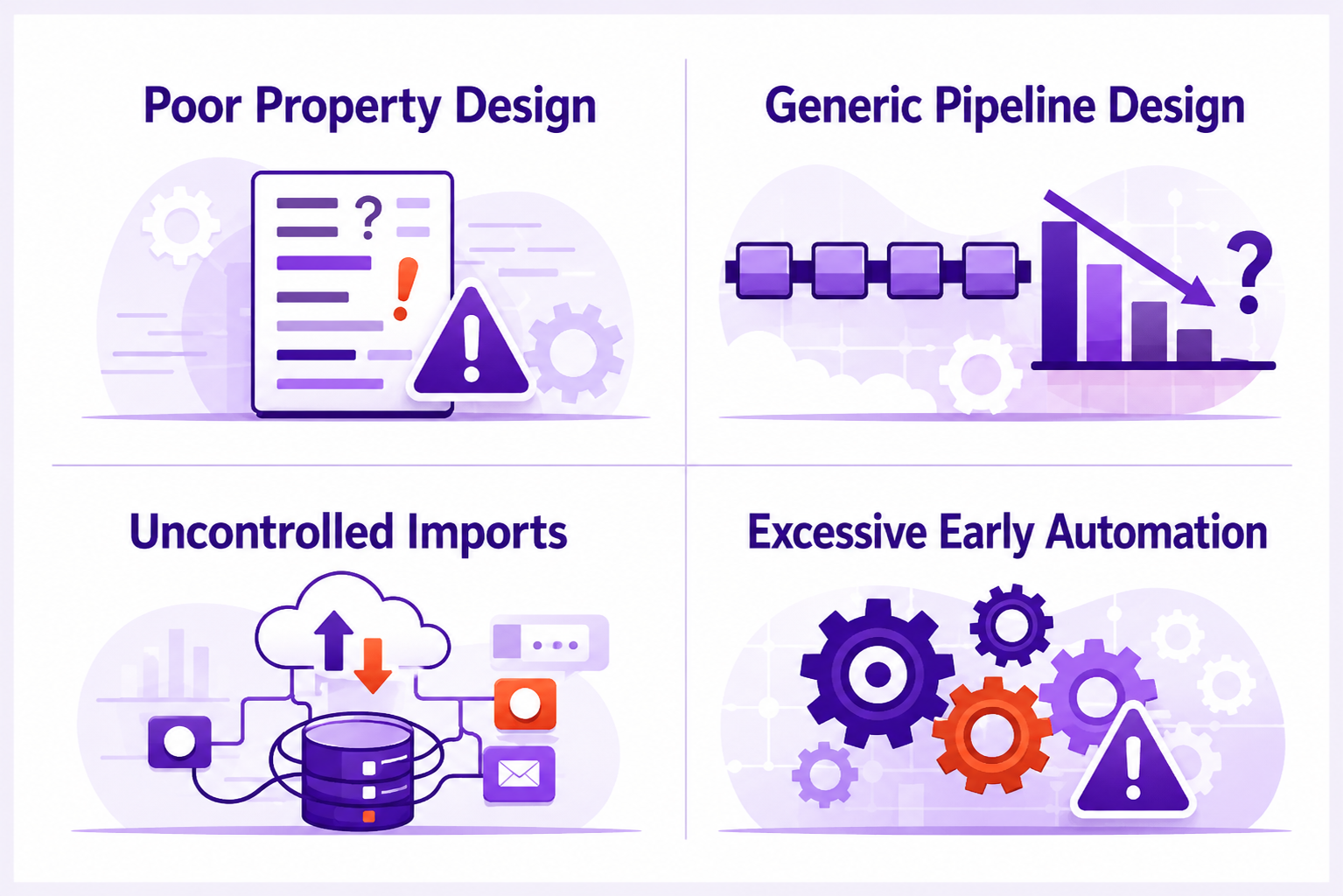
Most HubSpot problems do not start with the software. They start with an unclear process, rushed imports, excessive customization, or automation built on top of a weak data structure. The damage often shows up later as bad reporting, duplicate records, confused ownership, or a sales team that stops updating the CRM because it feels unreliable.
Understanding those failure points helps you avoid them while the setup is still easy to change.
Property mistakes are expensive because they affect almost everything in HubSpot. If you create multiple fields for the same concept, such as “Lead Source,” “Source Type,” and “Original Source Override,” users will not know which one matters. Workflows may reference one property while dashboards use another. Lists become inconsistent, and reporting confidence falls.
Field type mistakes are just as damaging. A free-text field for industry or lifecycle stage may seem flexible at first, but it quickly creates dozens of near-duplicate values that cannot be filtered reliably. When a property is meant to support routing, dashboards, or automation, it usually needs structured values, not open text.
A pipeline built from generic stages such as “Contacted,” “Follow-Up,” and “Negotiation” usually tells you very little. Different reps will interpret those stages differently, which makes conversion data noisy and forecast reviews harder to trust.
The fix is not adding more stages. The fix is defining meaningful milestones with real exit criteria. A smaller number of disciplined stages is usually better than a long list of vague ones.
Imports and integrations can create a long-term mess very quickly. If company names, domains, owners, stages, or source fields are entered into the CRM in different formats, users inherit a system that already needs cleanup on day one.
Integrations can also overwrite values or create duplicate records if sync rules are not reviewed carefully. That is why every connected tool should be tested with sample records before you trust it at scale.
Automation often makes the setup look mature before the system is stable. A portal with ten workflows is not better than a portal with three tested workflows. In fact, it may be worse if those workflows conflict, trigger too often, or update properties that users do not fully understand.
Start with the workflows that protect core operating needs. Then add more only after the team has used the CRM long enough to expose where manual work is actually slowing them down.
Read Next:
When Was the Last Time You Cleaned Up Your HubSpot CRM?
The 25 HubSpot Admin Tasks That Matter Most in 2026
A cleaner implementation is easier to maintain, easier to audit, and easier for new users to adopt. These practices reduce the chance that HubSpot becomes a difficult system to unwind later.
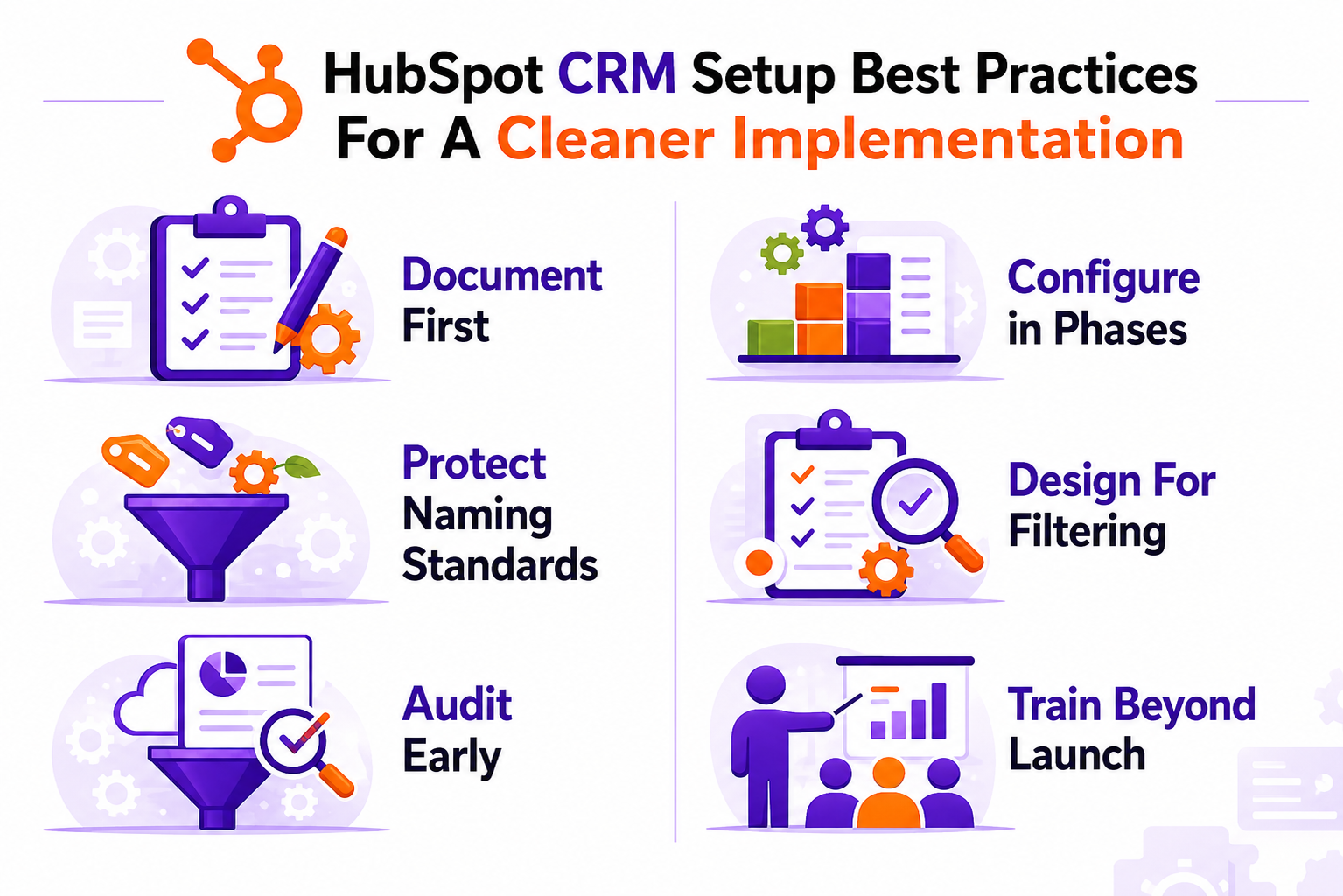
Document First: Keep one shared CRM setup document that includes lifecycle stage definitions, pipeline rules, owner logic, workflow purpose, property standards, and reporting priorities so admins and managers have one reference point when changes are needed.
Configure in Phases: Start with contacts, companies, deals, owners, core properties, one pipeline, and essential workflows before adding advanced automation, scoring, additional pipelines, or edge-case customization that the team may not use consistently.
Protect Naming Standards: Use consistent naming conventions for properties, workflows, lists, forms, and dashboards so admins can find the right asset quickly and avoid editing the wrong object during future changes.
Design For Filtering: Every field that matters for segmentation, routing, or reporting should use structured values that can be filtered cleanly across lists, dashboards, and workflows without manual interpretation.
Audit Early: Schedule a formal review after the first 30 to 45 days of live usage to identify duplicate properties, broken workflows, unused fields, stalled deal stages, and reporting gaps before they become embedded habits.
Train Beyond Launch: Do not assume one onboarding session is enough. Run follow-up training after reps and managers have real usage experience, because that is when questions about stage movement, ownership, filters, and workflow behavior become more concrete.
Read Next: Why Most SMBs Using HubSpot Need Admin Support (and Don’t Know It)
Some HubSpot CRM setups are straightforward enough to manage internally. Others become risky because of migration needs, multiple teams, custom lifecycle logic, or reporting expectations that require deeper planning. The right choice depends less on company size and more on process clarity, admin capacity, and the cost of getting the setup wrong.
This decision matters because cleanup is usually harder than initial configuration. If your team is already stretched, a weak setup can create months of avoidable friction.
In-house setup is often reasonable when the sales process is simple, one team owns most of the CRM activity, the number of required custom properties is limited, and existing data is fairly clean. It also helps if someone internally can act as a real admin, not just a casual user with extra responsibilities.
A good in-house fit usually includes one main pipeline, a short list of lifecycle rules, a manageable import file, and limited integration complexity. In that situation, the team can often get started with HubSpot, validate what works, and expand carefully.
Outside help becomes more valuable when multiple teams need visibility across sales and marketing, when old CRM data needs to be migrated cleanly, or when workflow logic affects routing, attribution, or service handoffs. It is also useful when leadership expects forecast-ready reporting early, and the internal team does not have time to define process details on its own.
If your portal needs custom properties across several objects, role-based permissions, strict handoff logic, multiple data imports, or integration review with existing systems, implementation support can reduce expensive mistakes. This is especially true when the business cannot afford weak pipeline visibility or poor data quality during rollout.
If you decide to get help, the key question is whether the partner will configure HubSpot around your actual process or simply reproduce generic defaults. Ask for concrete details, not broad assurances.
Process Mapping: Ask how they document lifecycle stages, lead status rules, ownership logic, and deal creation criteria before building anything in the portal.
Property Governance: Ask how they decide between default properties and custom properties, how they set naming conventions, and how they prevent duplicate-field sprawl.
Import Planning: Ask what data cleanup they require before migration, how they test mapping, and how they validate associations, owners, and dates after import.
Workflow Discipline: Ask how they decide what to automate first, how they test workflows, and how they prevent overlapping logic that creates duplicate tasks or bad stage updates.
Reporting Readiness: Ask which dashboards, filters, and views they create before launch and how they confirm that pipeline and lifecycle reports reflect real process behavior.
Admin Handoff: Ask what documentation, training, and post-launch support they provide so your team can manage HubSpot after the initial setup is complete.
Read Next: HubSpot Admins: Hire In-House or Partner with an Agency?
A strong HubSpot CRM setup reduces more than admin frustration. It makes your sales process easier to follow, your reporting easier to trust, your handoffs easier to manage, and your automation easier to maintain once real volume starts moving through the system. Most setup problems are still easy to fix early. They become expensive when the team has already built habits, dashboards, workflows, and pipeline reviews on top of weak foundations.
Start with Process: Define lifecycle stages, deal criteria, owners, and handoffs before you build properties, workflows, and dashboards inside HubSpot.
Launch In Layers: Get the core CRM structure, essential automation, imports, and visibility right before adding extra customization or advanced reporting.
Validate Everything: Test forms, meetings, imports, workflows, permissions, and pipeline movement using real scenarios before the broader team depends on them.
At Smith Digital, we help B2B teams configure HubSpot around actual sales and marketing workflows, with attention to lifecycle tracking, pipeline structure, automation, reporting, and admin usability. That work is designed to make the CRM easier to trust on day one and easier to optimize as the team grows. Request a CRM setup to make your HubSpot portal easier to use, reduce setup mistakes before they spread, and build a CRM foundation your team can actually operate.
Start by defining your lifecycle stages, lead status rules, deal creation criteria, ownership logic, and reporting needs before changing settings. Then configure properties, pipelines, users, permissions, workflows, imports, integrations, dashboards, and launch validation in that order. If you skip the planning step, the CRM will reflect an inconsistent process instead of operational discipline.
HubSpot is user-friendly compared with many CRMs, but setup is only easy when the underlying sales process is clear. The software can be configured quickly, but a reliable setup still requires decisions about property design, pipeline logic, permissions, automation, imports, and reporting. The difficulty usually comes from process ambiguity, not from clicking through the tool.
Yes, many teams can handle HubSpot setup internally if the sales process is straightforward, the data is reasonably clean, and someone can own admin responsibilities. Internal setup becomes harder when you need migration support, multiple team permissions, custom workflow logic, several pipelines, or forecast-ready reporting. The more operational dependencies the CRM needs to support, the more important setup discipline becomes.
Set up the process model first, not the software settings. That means defining lifecycle stages, lead status values, ownership rules, handoff conditions, and deal creation criteria before you create properties or workflows. Once that is documented, configure your core CRM architecture, then move into pipelines, permissions, automation, imports, reporting, and launch validation.
Setup time depends on complexity. A simple portal with one pipeline, limited automation, and clean data can be configured in a short timeframe, while a more complex implementation with migration work, multiple teams, custom properties, workflow routing, and reporting requirements can take much longer. The biggest variable is usually how much process definition and cleanup work has to happen before configuration starts.
The most common mistakes are importing data before the portal structure is ready, creating too many custom properties, using vague deal stages, automating too early, and failing to test permissions, associations, and reporting before launch. Those problems often lead to duplicate records, broken workflows, unclear ownership, and dashboards that no one fully trusts.

1 min read
Eric Smith : Mar 27, 2026 1:30:00 PM

1 min read
Eric Smith : Mar 30, 2026 9:00:00 AM
For many companies, the challenge is not buying the software but building an onboarding process that reflects how revenue teams already work. That is...

1 min read
Eric Smith : May 29, 2026 10:00:00 AM
HubSpot workflow templates can qualify leads, assign leads to the relevant rep, update lifecycle stage values, route internal notifications, support...