

<img src="https://secure.seat6worn.com/219576.png" style="display:none;">

9 min read

Is HubSpot Breaking Your Workflows? Start Troubleshooting These Common Issues Now

Are you an SMB leader spending more time fixing HubSpot than growing your business? You’re not alone. HubSpot is powerful, but tech issues often stall workflows, pollute data, and derail your team’s momentum.

The hard truth? 24% of CRM admins report that less than half of their data is accurate, with duplicates (53%) and missing fields (68%) being the primary sources of the issue. Even worse, 31% report that poor data wipes out 20% or more of annual revenue (Validity).

Most teams aren’t getting the value they paid for. The result? Stalled deals, broken automations, and dashboards no one trusts.

This guide breaks down the most common HubSpot issues SMBs face and how to fix them fast. You’ll leave with a clear plan to troubleshoot workflows, clean up your CRM, and restore control of your HubSpot account.

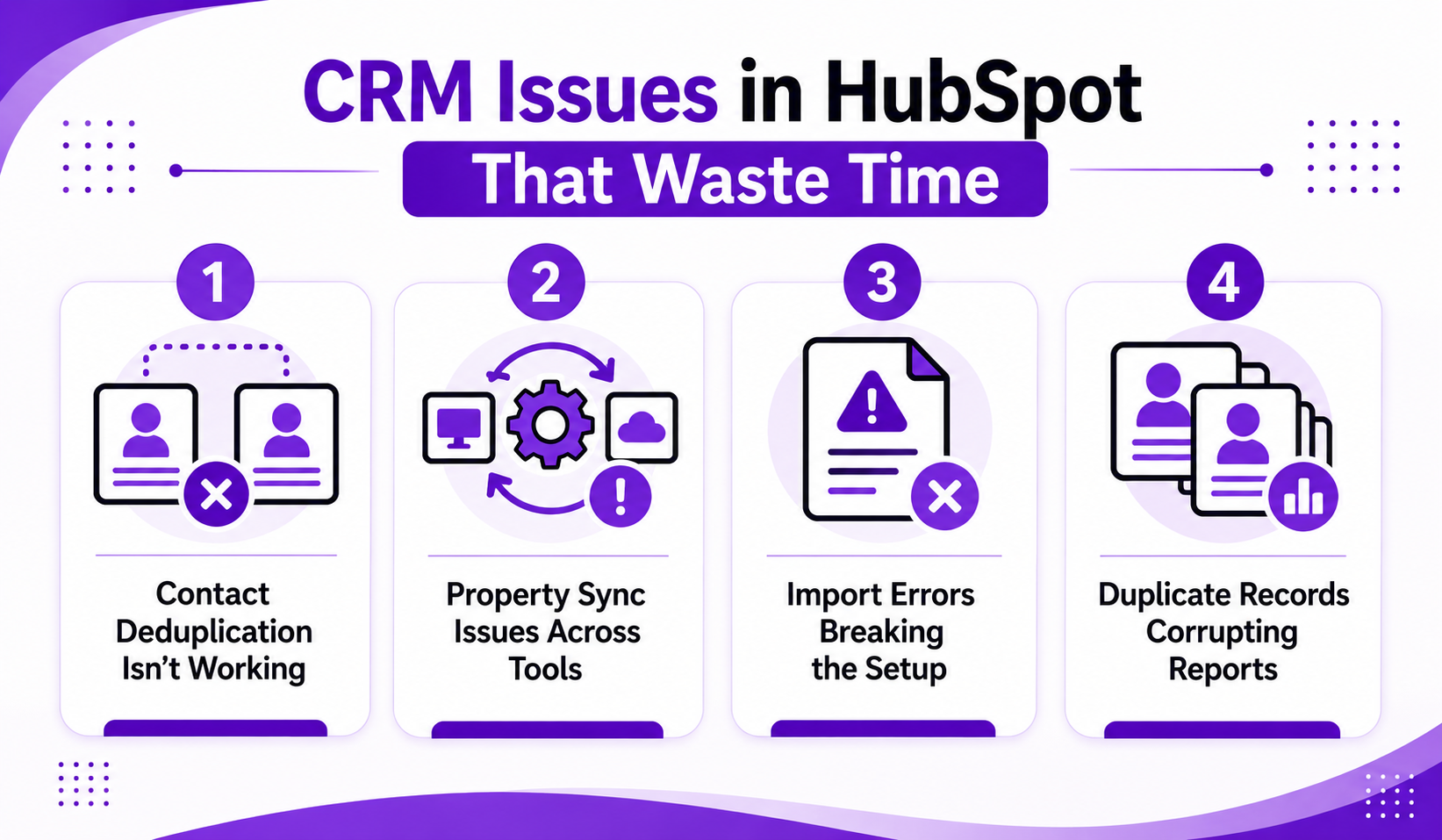
CRM Issues in HubSpot That Waste Time

The HubSpot CRM gives growing teams a solid foundation, but without proper structure, it turns into a cluttered mess. From broken integrations to unreliable reports, these common problems waste hours and block growth.

Contact Deduplication Isn’t Working

HubSpot only flags duplicates based on email addresses. That fails when contacts come from forms, manual entries, or imports missing that field. Use the Duplicate Management tool to review flagged records. To improve accuracy, connect a tool like Insycle and set match rules based on phone numbers, names, or company domains.

Property Sync Issues Across Tools

When fields stop syncing, check for mismatched formats between HubSpot and your source system. A dropdown in Salesforce won’t align with a plain text field in HubSpot. Misaligned mapping leads to integration issues, stale data, and broken automation. Before launching a sync, confirm all property types match and test your field dependencies. During data migration, this step prevents silent sync failures.

Import Errors Breaking the Setup

CSV imports often fail because of incorrect headers, extra spaces, or unmatched property types. Before uploading, map each column to an existing HubSpot field. Use the Import Error Log to identify failed rows and reformat the source data. If you import regularly, create a custom template to reduce errors and speed up your process.

Duplicate Records Corrupting Reports

Duplicate contacts and companies skew your totals in pipeline reports and dashboards. These errors lead to misleading metrics that impact sales decisions. Use filtered views with “Original Source Drill-down” and segment by lifecycle stage to surface and remove duplicates before reporting. A clean CRM is the baseline for trustworthy insights.

Automation Issues That Break Workflows

Automation is the promise. Missed triggers and broken flows are the reality. When workflows fail, teams lose leads, reporting breaks, and SMBs end up questioning their entire HubSpot setup. If your automation isn’t delivering, start by checking these common issues before contacting HubSpot support.

Workflow Enrollment Isn’t Triggering

This is one of the most frequent HubSpot issues SMBs encounter. Enrollment logic often fails due to overly strict conditions or missing contact properties. Use the Workflow History tab to pinpoint failed enrollments and adjust your criteria. These kinds of automation issues are avoidable with better planning and regular testing. If this becomes a recurring problem, it might be time to work with a HubSpot partner like SmithDigital to clean up your logic.

Delayed Email Sends or Stalled Actions

If actions are delayed, check scheduled triggers, throttled queues, and the volume of API calls from automation tools. High usage can overwhelm the HubSpot platform, especially in larger teams or during active marketing campaigns. For better reliability, follow best practices like batching actions, reducing unnecessary delays, and avoiding time-based congestion. Improving flow logic directly improves your HubSpot experience.

Overlapping Workflows Causing Conflicts

When multiple workflows edit the same field, such as Lead Status or Lifecycle Stage, values often get overwritten. This causes problems with HubSpot that are hard to trace. Build a workflow map to spot overlap, and use Workflow Suppression Lists to manage conflicts. Documenting ownership of core properties also helps your support team resolve issues faster. Clear systems reduce errors and eliminate the need to constantly contact HubSpot support.

Goal-Based Workflows Not Completing

Goals tied to manual updates or static lists are unreliable. Use real-time events like a contact booking a meeting or a deal moving to Closed Won. Track these actions through native HubSpot properties rather than third-party tools to reduce risk. Broken goals are a red flag in HubSpot implementation and should be corrected before scaling further. If left unchecked, they can lead to systemic gaps in lead routing and pipeline flow.

Reporting & Analytics Issues in HubSpot That Don’t Add Up

Reporting is one of the most common HubSpot issues. Reports break when setup, integrations, or source data are inconsistent. If your dashboards feel unreliable, the root cause is usually incomplete data, poor configuration, or gaps introduced during HubSpot implementation.

Dashboards Showing Incomplete Data

Incomplete dashboards are a classic HubSpot problem tied to filtering mistakes and missing fields. Reports often use broad filters like “is any of,” which pulls partial records and skews totals. Always confirm the correct pipeline, date range, and lifecycle properties such as Lead Created Date. Inconsistent source data leads to inaccurate dashboards. This issue affects sales forecasting, lead generation, and overall visibility for the sales team.

Custom Reports Not Filtering Correctly

When custom reports ignore filters, the issue is almost always an object mismatch. Contact properties do not filter deal-based reports correctly. HubSpot allows flexibility, but only when filters align with the primary object. Teams that frequently build custom reports should document field behavior for their support team. This reduces confusion and speeds up troubleshooting across departments.

Attribution Reporting and Integration Gaps

Attribution issues often stem from weak HubSpot integration with ad platforms. HubSpot’s default last-touch model hides the impact of earlier interactions in longer buying cycles. Switch to multi-touch attribution and confirm that Google Ads or other platforms are properly connected. When integrations break or UTM data is missing, attribution reports fail. This directly impacts decisions around email marketing campaigns and paid spend.

Funnel Reports That Do Not Match Reality

Funnel reports rely on consistent lifecycle updates. Manual changes and skipped stages introduce common problems that distort conversion data. The most reliable fix is to create custom workflows that enforce lifecycle progression. This approach supports better reporting and a stronger HubSpot CRM setup. Accurate funnels let teams track real conversion rates and pipeline velocity.

Why these reporting issues persist: Most reporting issues stem from a rushed setup or unclear data rules. Fixing them early improves accuracy and speeds up insights.

Marketing & Email Tools That Misfire

HubSpot's email and campaign tools are powerful, but they fail easily when setup is rushed or data is messy. Personalization issues, formatting bugs, and delivery problems are among the most common HubSpot challenges. These misfires frustrate marketing teams and undermine performance across entire campaigns.

Emails Getting Stuck or Not Sending

Emails in HubSpot may stall if recipients are missing from the list, have unsubscribed, or fail smart send logic. Use the Email Health dashboard to spot bounce patterns or deliverability drops. Check if send lists include valid contacts and if any suppression lists were triggered. For recurring failures, review HubSpot’s knowledge base or escalate through support channels for delivery-specific insights.

Personalization Tokens Not Populating

Tokens only work if the field exists and is populated. Blank values lead to broken personalization, damaging trust. Always use fallback values and preview sends with test contacts. For reliable token use, enforce required fields during lead capture. If you're managing multiple audiences, consider creating custom solutions that group contacts by completeness and relevance.

Email Rendering Problems Across Devices

Email templates inside HubSpot can fail across platforms due to unsupported fonts, nested tables, or excessive inline CSS. Test your emails using HubSpot's preview tools and validate rendering on mobile, desktop, and webmail clients. Poor formatting kills conversions and worsens the user experience. Stick to tested components, avoid background images, and simplify structure when possible.

Spam and Deliverability Issues

Spam complaints, broken authentication, or high bounce rates damage your sender reputation. Use SPF, DKIM, and DMARC settings to prove sender legitimacy. Regularly clean your lists to avoid recycled or invalid addresses. If spam rates rise, audit your subject lines and sending frequency. Deliverability issues are technical challenges, but they often stem from poor HubSpot setup or a lack of contact hygiene.

Why Email Issues Keep Happening: Most HubSpot email issues come from skipping tests. Validate personalization, rendering, and suppression logic before sending.

HubSpot Integration & API Failures

Integrations can enhance your CRM, but they also introduce complexity. When systems don’t sync correctly, the impact spreads fast—broken data, lost contacts, and stalled automation. These are some of the most common HubSpot issues tied to integrations and APIs, especially for SMBs scaling their tech stack.

CRM Sync Issues with Salesforce or Other Tools

One of the most frustrating HubSpot problems occurs when data won’t sync between CRMs. The most common cause is misaligned field permissions or unmapped custom objects. Start by checking the Sync Health dashboard for errors. If you're using Salesforce, confirm that field-level security allows read/write access. For smooth syncing, both systems must map to the same data structure. During data migration, clean and align field types before the first sync.

Integrations Breaking After API Updates

Third-party apps break silently when APIs change or permissions expire. These integration issues often go unnoticed until campaigns fail or leads disappear. Re-authenticate your integrations regularly and monitor the Integration Logs inside HubSpot. Add alerts that flag disconnections so your support team can fix them before they disrupt workflows. Preventing these issues requires an active check-in process—not a set-it-and-forget-it approach.

API Rate Limits Stalling Workflows

The HubSpot API enforces strict rate limits. If your automation exceeds the threshold, requests are blocked, and data stops flowing. Use batch updates where possible and monitor API usage in the Developer Account. For growing SMBs using multiple apps, hitting the limit is common. This creates delays that disrupt syncing, reporting, and workflow triggers. If it happens often, consider optimizing calls or upgrading your HubSpot plan.

Webhooks Failing to Deliver Data

Webhooks fail when the receiving URL is unavailable, misconfigured, or unauthenticated. Review your Webhooks Log for error codes like 401 (unauthorized) or 500 (server error). Make sure endpoints support HTTPS, include auth tokens, and return valid responses. This is especially important when you customize HubSpot with third-party tools. Broken webhooks lead to gaps in lead tracking, missed updates, and lost data, without any visible warning.

How to Prevent Integration Problems in HubSpot

Most integration failures stem from rushed setup, weak monitoring, or misaligned tools. Define clear owners for each system, schedule routine health checks, and document every app connection. If your team lacks in-house experience, work with a HubSpot partner to avoid deeper problems. Clean integrations support accurate data, stable automation, and a smoother HubSpot experience.

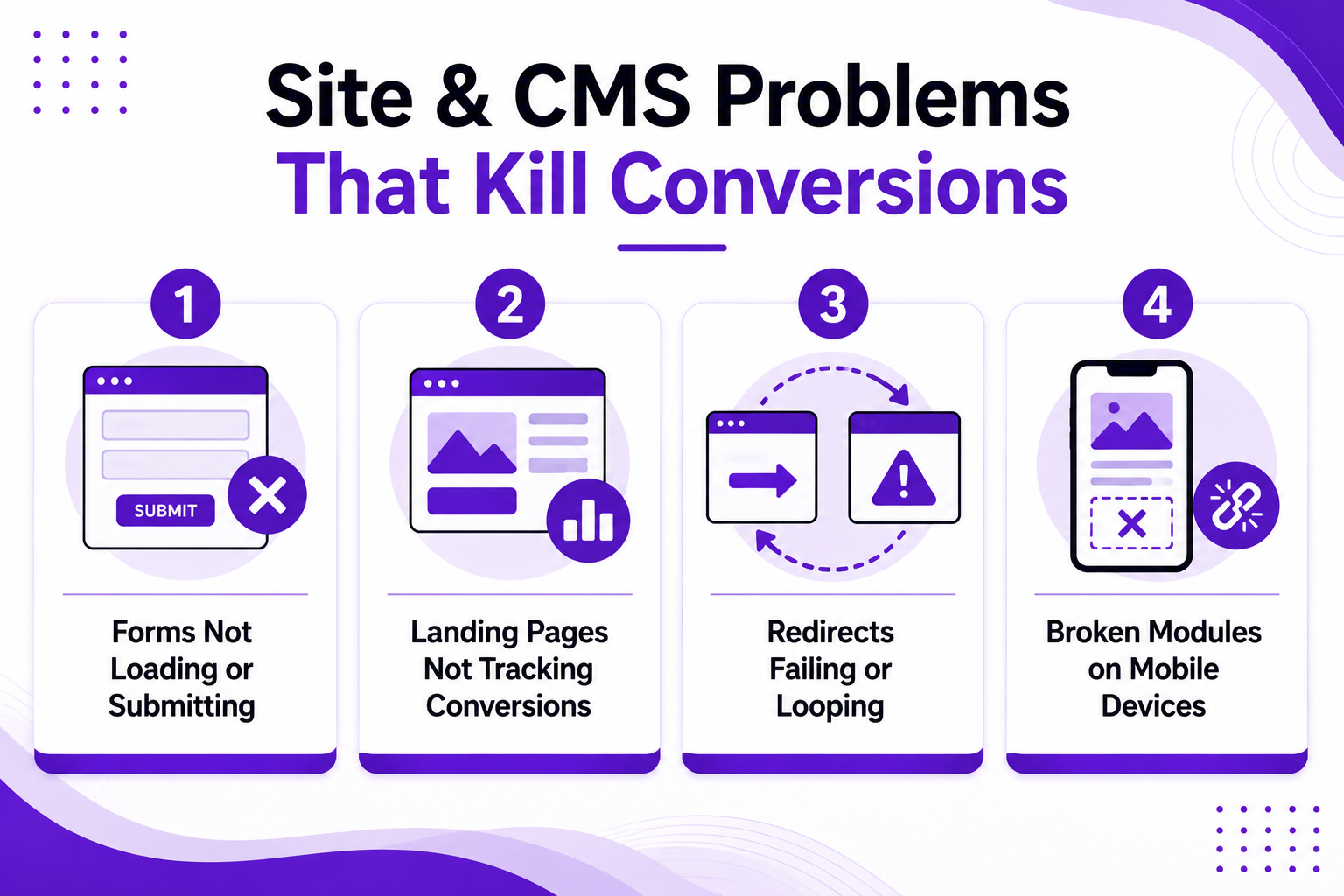
Site & CMS Problems That Kill Conversions

When your HubSpot website fails, conversions drop instantly. Forms stop collecting leads, redirects misfire, and mobile layouts fall apart. These are common HubSpot issues that hurt performance—but most teams don’t catch them until after traffic is lost. Fixing these errors early is critical to protecting your pipeline and maintaining credibility with visitors.

Forms Not Loading or Submitting

Forms can break for several reasons: blocked JavaScript, incorrect embed codes, expired cookies, or browser extensions. If your form isn’t loading, use the Form Debugger in the HubSpot tools menu. Always test in incognito mode to rule out caching problems. HubSpot forms are sensitive to inline scripts, so avoid inserting code snippets directly within HubSpot modules. Teams should also monitor forms inside the HubSpot knowledge base for updated compatibility notes.

Landing Pages Not Tracking Conversions

When the landing page data looks off, the issue usually comes from missing or broken tracking code. Use the Tracking Code Validator to confirm installation across every page template. Embedded CTAs must use HubSpot’s native tracking URLs to report conversion data accurately. This is a recurring HubSpot problem for teams using custom-coded landing pages that bypass standard tracking components. Fixes often involve aligning templates with built-in modules to preserve tracking.

Redirects Failing or Looping

HubSpot does not support regex in redirect rules, and every redirect must be an exact match. Conflicting rules, duplicates, or out-of-order entries cause loops or 404s. Review your redirects list inside Settings and remove any duplicates. To resolve this common issue, standardize URL naming conventions and restrict editing access to approved users. These small changes prevent accidental overrides and protect your site's navigation.

Broken Modules on Mobile Devices

Modules that aren’t mobile-optimized lead to layout breaks, blocked CTAs, and low conversions. Common problems include absolute positioning, fixed-width containers, and non-responsive media. Use Preview on Mobile to identify problem areas before publishing. HubSpot offers mobile-friendly templates, but when teams build custom modules without testing, they often miss mobile compatibility. Clean, flexible layout structures improve both load speed and user experience.

Why These Problems Keep Repeating

Most of these site issues stem from poor configuration, lack of testing, or bypassing default tools during HubSpot implementation. SMB teams often customize fast to launch quickly, but that speed creates fragile builds. If your site traffic is growing, but conversions aren’t, you likely have technical issues embedded in your CMS structure. Fixing them is essential to unlock the full potential of HubSpot as a lead generation platform.

Quick Fixes & Workarounds

Not every HubSpot issue needs a support ticket. Many problems stem from misconfigurations, outdated settings, or missed updates. These fast fixes can help SMB teams regain control and get back on track without waiting days for a response from HubSpot support.

Use Built-In Diagnostic Tools

HubSpot includes tools that diagnose common issues instantly. The Form Debugger, Tracking Code Validator, and Workflow History tabs all reveal root causes fast. Run these tools before assuming something is broken. Most HubSpot users skip them and waste time troubleshooting manually.

Clear Cache, Reconnect Integrations, and Rebuild Logic

Many issues with HubSpot are resolved by clearing your browser cache or reconnecting your integrations. If automations stall, rebuild the logic using clean property values and current enrollment triggers. Avoid reusing outdated workflows. For recurring issues, create a clean version and retest before publishing.

Re-Audit Your Setup Every Quarter

As your team scales, so does the complexity of your HubSpot setup. Review integrations, property mappings, and automation triggers every 90 days. This prevents data decay and broken dependencies. Document every change so your support team can identify issues faster later.

Apply Preventive Best Practices

  1. Use consistent naming for workflows, lists, and reports
  2. Limit custom property sprawl by merging duplicates
  3. Avoid assigning multiple owners to the same contact
  4. Centralize your lead lifecycle logic

Preventative fixes take time upfront, but eliminate hours of troubleshooting later. If your team lacks the internal bandwidth, consider working with an experienced HubSpot partner to review and optimize your instance.

Get Control of HubSpot Before It Slows You Down

HubSpot is a powerful platform, but small setup mistakes can lead to serious problems across your CRM, automation, and reporting. Most SMBs don’t need a new system. They need to make their current one work as intended.

If your team is stuck fixing the same issues every week, the real problem is often buried in the configuration. Cleaning up your instance restores speed, accuracy, and trust in your data.

You don’t need to wait for support tickets to clear. SmithDigital's HubSpot Admin Support team helps you clean up your CRM, build custom workflows, and stay in control.

The 25 HubSpot Admin Tasks That Matter Most in 2026

The 25 HubSpot Admin Tasks That Matter Most in 2026

Marketing operations live in HubSpot. When it’s clean, fast, and aligned with your business goals, everything clicks, from lead handoffs to campaign...

Read More
Are You Using HubSpot Lifecycle Stages the Right Way?

Are You Using HubSpot Lifecycle Stages the Right Way?

Messy CRM data is costing your business more than you think. According to Gartner, poor data quality drains an average of $12.9 million per year from...

Read More
What Is HubSpot Data Hygiene and How Do You Keep Your CRM Clean?

What Is HubSpot Data Hygiene and How Do You Keep Your CRM Clean?

Dirty CRM data is more than a nuisance. It's a drain on revenue and a threat to your operational clarity.

Read More